The Library Slider
The Library Slider
The Library Menu is a slider tab that “sticks” to the right side of the screen when not in use. When clicked, the tab slides out to display all of the MySciLife content libraries to which you have access. From here the user can click a library to access its contents.
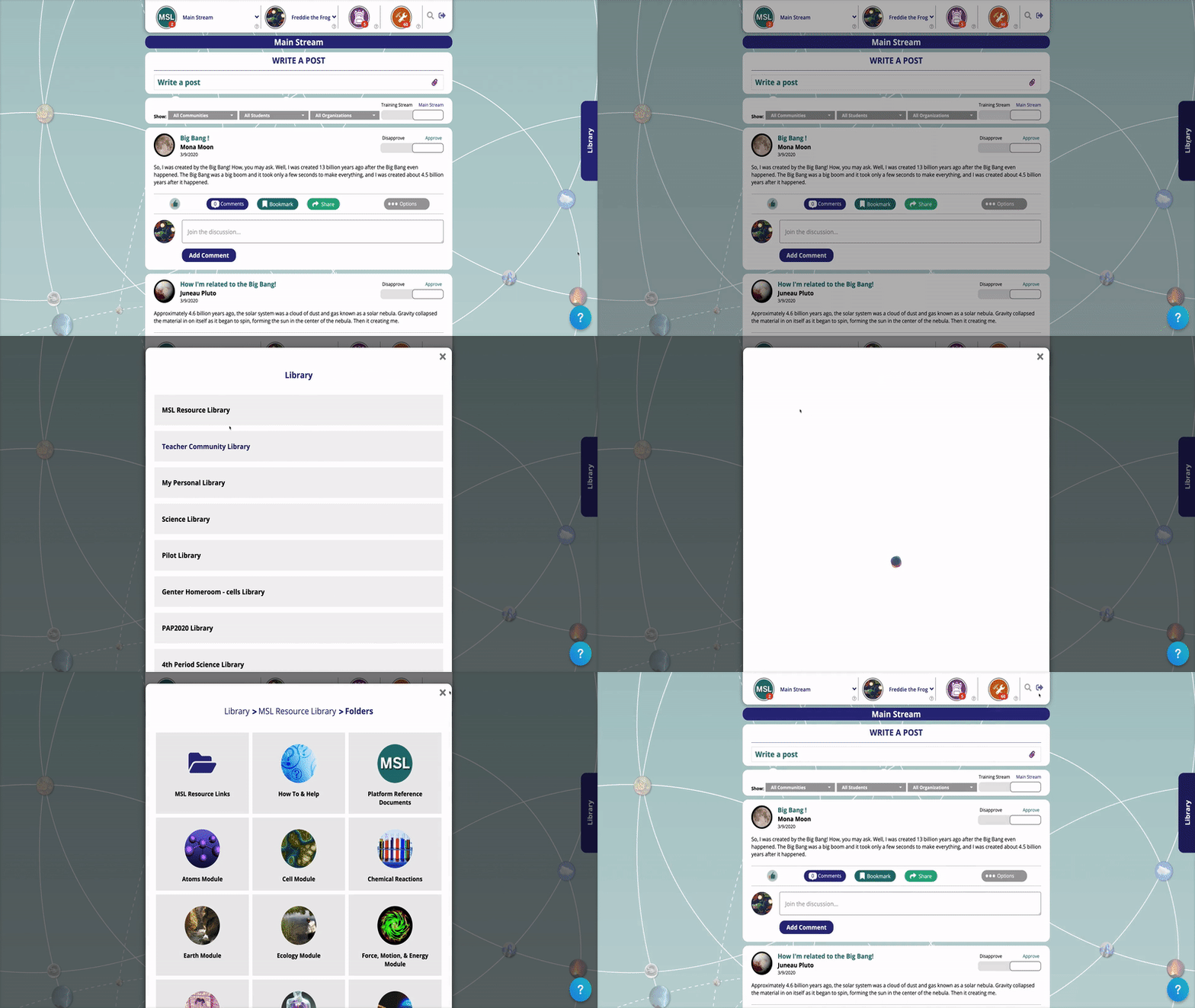 The Library Slider
See article Libraries (Overview) for more information.
Related Articles
Sharing / Posting Library Items to a Community
To post a library item in a community: Click the Library Slider and navigate to the item you want to share. Click "Options." Click "Share." Under "Share this item to:", select "a Community/Main Stream." Select the community where you would like to ...Teacher Community Library
Like the MSL Resource Library, administrators and lead teachers curate this library. This is where they put MySciLife curriculum support resources and materials intended for teachers only. If any document in this library is updated, that change will ...MySciLife Resource Library
This is where teachers will find the MySciLife curriculum support resources and materials for teachers and students. Administrators and lead teachers in MySciLife can add to and curate this library. If any document in this library is updated, that ...My Personal Library
Each teacher has a Personal Library. Any resource that a teacher is going to re-use from year-to-year should always be stored here. When communities are archived or MySciLife is ‘rolled over’ into a new school year/session, each teacher’s Personal ...Libraries Overview
Libraries are places where MySciLife teachers and students can access helpful links or find and download useful files. They are also places where teachers can post content to share. Libraries are organized into folders containing “library items.” A ...